
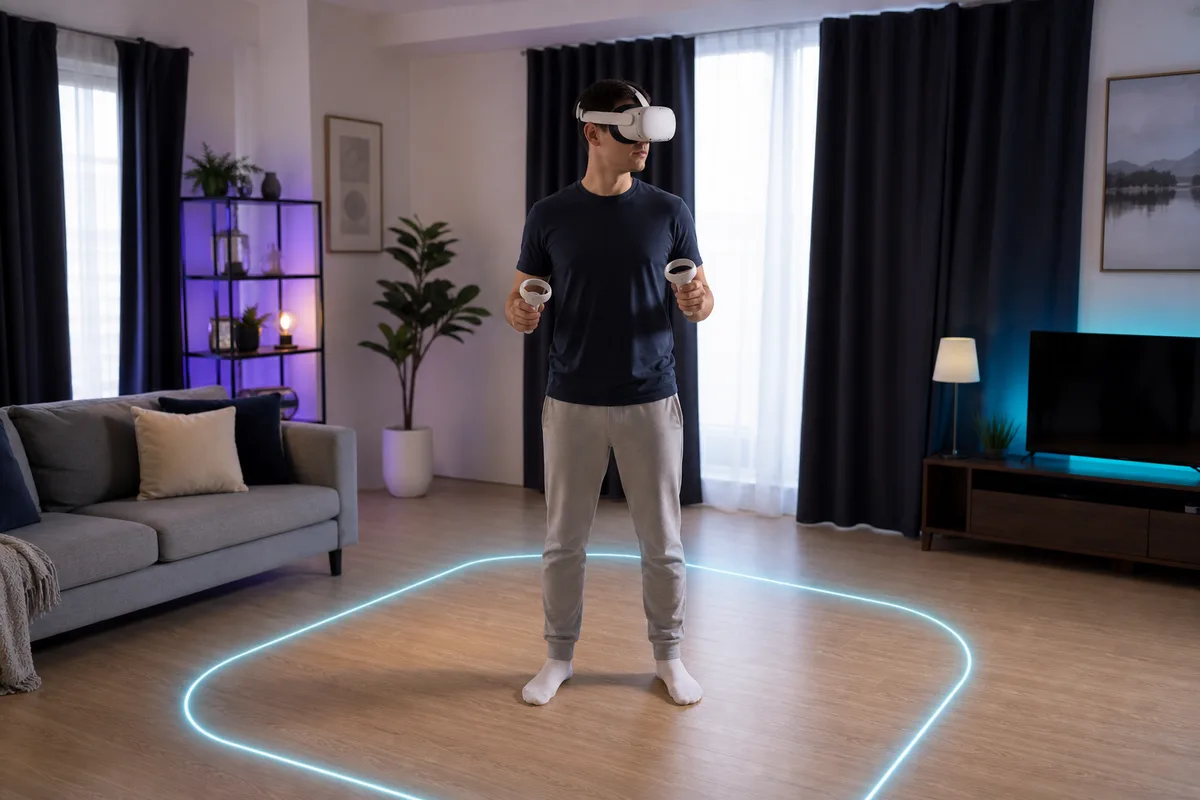
If VR makes you feel warm, dizzy, headachy, unusually tired, disoriented, or nauseated, stop immediately. Take the headset off, sit somewhere safe, and wait until you feel fully normal. Do not test whether you can endure another five minutes.
Many people can make VR more comfortable by choosing gentler movement, correcting fit, and increasing exposure gradually. Some remain sensitive to particular experiences. Neither outcome is a failure.
Why VR can make you feel sick
VR can show convincing movement while your body remains still. Your eyes may report that you are accelerating, turning, or falling while your vestibular system reports no matching motion. That sensory conflict is one common explanation for cybersickness.
Discomfort can also be made worse by:
- low or inconsistent frame rate;
- visible latency or tracking errors;
- smooth artificial turning;
- acceleration that you did not initiate;
- camera shake, head bob, or vehicle roll;
- a headset that is blurry, slipping, or incorrectly adjusted;
- long sessions, fatigue, heat, dehydration, illness, or stress;
- starting with an intense game before learning basic controls.
You do not need to diagnose the exact mechanism during a session. The safe response is the same: stop, recover, and reduce the challenge next time.
Recognize the early signals
Nausea is not always the first symptom. Watch for:
- sudden warmth or sweating unrelated to exercise;
- increased saliva, burping, stomach awareness, or appetite loss;
- eye strain, headache, or trouble focusing;
- dizziness, swaying, or loss of orientation;
- unusual fatigue, yawning, or difficulty concentrating;
- a “not quite right” feeling that appears during virtual movement.
Treat your earliest repeatable signal as the stop sign. Ending a session while you still feel good makes it easier to return later.
Use the strongest comfort settings first
Comfort options are tools, not training wheels. Begin with the most conservative combination:
Teleport movement
Teleporting moves the viewpoint between stable positions without showing continuous travel. It removes much of the visual acceleration that triggers symptoms for some people.
Snap turning
Snap turning rotates the view in fixed steps. Start with a moderate angle and a deliberate button press. Physical turning can feel more natural when your room and cable setup allow it safely.
Movement vignette
Often called tunnelling or blinders, this narrows peripheral vision during movement. Peripheral motion is a strong cue, so reducing it can make travel more tolerable.
Seated or stationary mode
Seated play reduces balance demands and makes it easier to stop safely. Recalibrate height so the game does not place your virtual viewpoint incorrectly.
Reduced camera effects
Disable head bob, camera shake, cinematic sway, smooth crouching, vehicle roll, and forced camera motion where possible. These effects can be dramatic on a monitor and overwhelming in a headset.
Change one setting at a time only after several symptom-free sessions. If you change everything at once, you will not learn what helped.
Choose experiences by comfort, not hype
A useful progression is:
- mixed reality or stationary passthrough experiences;
- seated 180- or 360-degree media with little camera motion;
- room-scale games where your real movement matches virtual movement;
- teleport locomotion with snap turning;
- slow smooth movement with a strong vignette;
- faster smooth movement, vehicles, flying, or smooth turning only if earlier steps remain comfortable.
You never have to reach step six. A person who enjoys rhythm games, mini golf, and teleport adventures is not using VR incorrectly.
A conservative seven-session plan
This is a pacing example, not a medical protocol. Wait until you feel completely normal between sessions, repeat any step as often as needed, and move backward if symptoms appear.
Sessions 1 and 2: stable and short
- 10 to 15 minutes maximum.
- Seated or room-scale experience with no artificial movement.
- Learn pause, passthrough, recenter, and quit controls.
- Stop before symptoms.
Sessions 3 and 4: teleport movement
- Keep snap turning and a vignette enabled.
- Choose a calm environment with frequent stopping points.
- Keep the session no longer than your comfortable earlier sessions.
Sessions 5 and 6: controlled smooth movement
- Try slow movement for a minute or two inside an otherwise comfortable session.
- Keep snap turning; smooth turning is a separate challenge.
- Stop at the first early signal, even if the game is going well.
Session 7 and beyond: adjust one variable
- Slightly reduce the vignette or increase movement time—not both.
- Keep a simple note of the game, settings, minutes, and symptoms.
- Preserve settings that work. There is no prize for disabling them.
If a step causes symptoms, return to the last comfortable setup after full recovery. If even stationary VR repeatedly causes symptoms, stop using the headset and seek qualified medical advice.
Fix fit and calibration before testing tolerance
Blurry or unstable visuals can add discomfort.
- Clean the lenses using the manufacturer’s instructions.
- Set the lens spacing or interpupillary distance correctly.
- Move the visor until both eyes find the clearest area.
- Use the top strap to carry weight; do not crush the visor against your face.
- Recenter the virtual view and reset floor height.
- Confirm room lighting supports reliable tracking.
- If using PC VR, reduce graphics settings until frame delivery is stable.
Meta’s developer guidance requires Quest apps to meet minimum performance targets and notes supported higher refresh rates on current models; stable performance is a comfort issue as well as a visual one. Developers can consult the current Meta performance documentation.
Make the physical room work for you
A cool, clear, quiet room lowers the number of distractions you are managing. Some users like a normal room fan because airflow provides a stable real-world direction, but treat that as a personal orientation aid—not a cure.
Always:
- keep the fan and cord outside the boundary;
- keep water outside arm’s reach of electronics and the active play zone;
- avoid starting when exhausted, unwell, hungover, or overheated;
- take regular breaks even when you feel fine;
- remain seated after removing the headset if you feel unsteady;
- do not drive, cycle, use tools, or take other risks until fully oriented.
Use the VR room setup guide to check furniture, overhead hazards, cables, spectators, pets, and sunlight.
Troubleshoot the experience, not only yourself
If one game causes symptoms while others do not, compare:
- artificial movement speed and acceleration;
- turning style;
- horizon stability;
- frame rate and graphics settings;
- forced camera animation;
- vehicle suspension, roll, and pitch;
- whether movement follows your head, hand, or thumbstick direction;
- seated versus standing calibration.
Look for a comfort rating and accessibility menu before purchase. Community reports can reveal patterns, but individual tolerance varies; test inside the store’s refund window when possible.
When to stop experimenting
Stop using VR and seek professional medical advice if symptoms are severe, persist after the headset is removed, occur outside VR, or include anything that concerns you. Follow the headset’s safety manual for warnings related to seizures, vision, balance, medical devices, pregnancy, injuries, or health conditions.
Children and supervised accounts have model- and region-specific age guidance. Use the current manufacturer’s instructions rather than a blog summary.
Your comfort checklist
- I know my earliest symptom and will stop when it appears.
- The lenses, IPD, straps, floor height, and view are correctly adjusted.
- I begin with teleport, snap turn, a vignette, and seated mode where available.
- The game runs smoothly and tracking is stable.
- The room is cool, clear, and free of interruption.
- I change one comfort variable at a time.
- I wait until I feel fully normal before returning.
- I accept that some movement styles may never be enjoyable for me.
Sources and further reading
- Meta Quest Safety Center — select the exact headset for current health, play-space, and use warnings.
- PlayStation VR2 support — official setup, lens adjustment, play-area, and care information.
- Meta mobile VR performance guidance — current frame-rate targets for developers.
This article is general educational information, not medical advice or treatment. Individual susceptibility varies.