
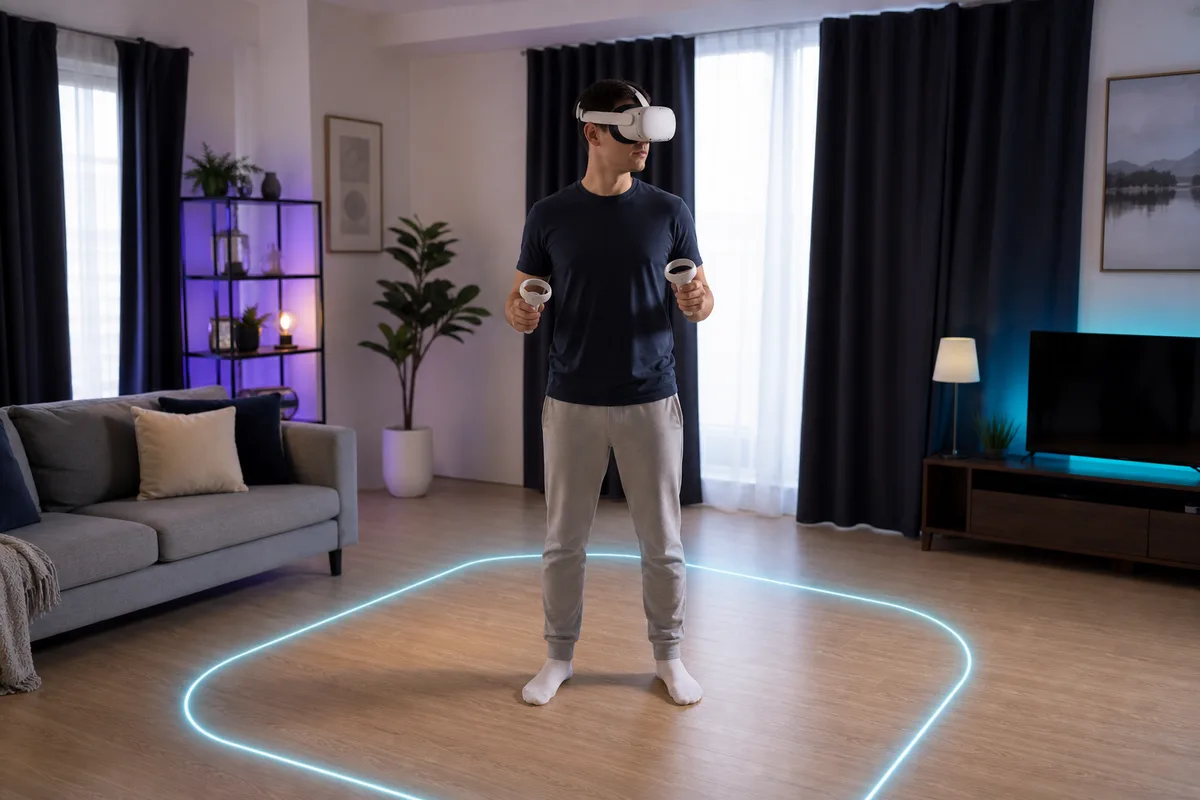
A virtual boundary is only a warning. It cannot move a coffee table, stop a pet, lower your momentum, or protect a controller already swinging toward a wall. A safer VR room begins with physical clearance before digital setup.
Use this checklist whenever you move the headset, rearrange furniture, change straps, or introduce a new player.
Choose the smallest safe play mode
Most VR software falls into three physical modes:
| Mode | Real movement | Good for | Main setup need |
|---|---|---|---|
| Seated | Head, arms, limited torso | simulators, media, accessibility, longer sessions | stable chair and clear arm reach |
| Stationary standing | turning and arm movement from one spot | rhythm, social, mixed reality | clear circle plus overhead clearance |
| Room-scale | steps, crouching, reaching, turning | active games and exploration | larger obstacle-free floor area |
Use the least demanding mode that provides the experience you want. Room-scale is not inherently “more real,” and seated play is not a lesser version.
Check the headset and game’s current minimum area. Do not copy a measurement from another platform or assume the box boundary is enough for full arm extension.
Clear the real space before drawing a boundary
Walk the area without the headset and look at three levels.
Floor level
Remove rugs that slide, cables, toys, bags, weights, footstools, pet bowls, floor lamps, and low tables. Bare feet or stable indoor footwear are safer than slippery socks for active games.
Notice changes in level: steps, thresholds, hearths, and balcony doors should be well outside the play zone.
Hand and hip level
Stretch both arms and slowly rotate. Check walls, shelves, televisions, windows, plants, door handles, sharp corners, and furniture that overhangs its base.
A guardian line drawn around a table leg does not represent the tabletop extending above it.
Overhead level
Raise both controllers above your head while you can see the room. Check ceiling fans, pendant lights, low ceilings, shelves, and sloped roofs. Turn ceiling fans off during active VR and leave extra clearance for jumping or throwing motions.
Build a buffer outside the virtual line
Do not draw the boundary exactly against a wall or television. Your hand and controller can cross a warning line before your body stops. Tracking may also become less reliable near mirrors, windows, bright sunlight, blank walls, or poor lighting.
Leave a physical buffer based on the speed and reach of the game. More active software needs more margin.
The boundary should exclude:
- all furniture and fragile objects;
- stairs, doors that may open, and changes in floor height;
- reachable walls, screens, and windows;
- the cable path for tethered headsets;
- spectators, pets, and drinks.
Reset it whenever the room changes. Do not dismiss a boundary warning because “the table is usually farther away.”
Use a stable centre cue
A small tactile cue can help you return to the centre without looking: for example, a thin non-slip mat that does not curl or slide. It must remain fully inside the safe zone and should not become a trip edge.
This is an orientation aid, not a boundary replacement. If you repeatedly step off it during active games, pause and recenter rather than trusting the mat to stop you.
Set tracking-friendly light
Camera-tracked headsets generally need enough consistent room light to see environmental features. Avoid:
- direct sunlight into cameras or lenses;
- a completely dark room;
- flashing or rapidly changing light;
- mirrors and reflective surfaces near the play zone;
- moving holiday lights or screens dominating the room;
- featureless walls at every angle.
Close curtains when sunlight creates glare, but keep normal room illumination. Never place the headset where sunlight can enter the viewing lenses; focused light can damage the internal display.
Keep people and pets out of the boundary
Someone outside VR can see the player; the player cannot see them. Agree on a rule before the session:
- never walk silently into the play area;
- speak from outside the boundary and wait for acknowledgement;
- use passthrough before handing over an object;
- pause the game before adjusting a strap or cable;
- keep children and pets physically separated from active play;
- never touch or startle a player who is balancing or moving quickly.
Cast the headset view to a television or phone when possible. It helps a spotter understand when the player is aiming, turning, or in a menu—but the spotter still watches the real body and room.
Set up seated VR deliberately
Choose a stable chair without wheels for active upper-body movement. Swivelling can help simulators, but only if the base is stable and the cable cannot wrap around it.
Check:
- full controller reach on both sides and overhead;
- armrests that may hit elbows or controllers;
- the chair back against rear-reaching motions;
- floor height and seated-mode calibration;
- cable routing under or behind the chair;
- enough space to stand after removing the headset.
Avoid stools and exercise balls for first sessions. If balance or mobility is a concern, use the headset’s accessibility settings and have appropriate assistance nearby.
Manage tethered cables at the connector and the floor
For PC or console VR:
- Inspect the cable for cuts, kinks, or crushed sections.
- Give the headset connector strain relief so the port does not carry the cable’s weight.
- Route the cable from a consistent rear or side direction.
- Keep extra length out of the standing area.
- Use snap turning or an in-game turn indicator to avoid winding the cable.
- Pause and unwind—never spin rapidly in the opposite direction while wearing the headset.
Ceiling pulley systems remove some floor contact but add anchors, overhead tension, and a cable that can pull on the headset. Install only into suitable structure, follow weight and hardware instructions, and keep the system away from fans and lights.
Protect the television and the controllers
Face away from the television when the game allows it. Place screens outside the longest possible arm-plus-controller reach, not merely outside the standing boundary.
Use controller wrist straps as instructed. Tighten them before putting the headset on, especially when handing the system to a new player. Third-party grips should not block tracking or replace required straps unless the manufacturer explicitly says so.
Create a safe pause and exit routine
Every player should know how to:
- pause the experience;
- enable passthrough;
- recenter the view;
- remove controllers safely;
- loosen the headset without dropping it;
- sit down if they feel dizzy;
- exit without stepping into furniture.
Keep the chair or safe resting place outside arm-swing range but easy to reach after the headset is removed. If someone feels unsteady, they should remain seated until fully oriented.
Store the headset like optical equipment
After play:
- power down or use the recommended sleep mode;
- wipe sweat using the exact care instructions;
- let removable soft parts dry completely;
- point lenses away from direct and reflected sunlight;
- keep controllers where their buttons are not held down;
- coil cables loosely without sharp bends;
- keep the headset out of reach of pets and small children;
- do not close a damp headset in a case.
Read how to clean a VR headset before applying any liquid or disinfectant.
The 30-second preflight check
Say these out loud before an active session:
- Floor clear.
- Fan off and ceiling clear.
- Doors controlled.
- Pets and people outside.
- Boundary current.
- Wrist straps tight.
- Cable behind me.
- Lenses away from sunlight.
- Passthrough and pause controls known.
- Stop if I feel unwell.
That short habit is more useful than trusting a warning grid you drew last week.
Sources and current safety instructions
- Meta Quest Safety Center — select the exact model for current boundary, environment, health, and accessory guidance.
- PlayStation VR2 support — official play-area, setup, lens adjustment, and care information.
- SteamVR — official overview of SteamVR’s Chaperone boundary system.
This guide cannot account for every room, disability, medical condition, accessory, or game. Follow the headset and software instructions and choose seated or assisted use when that is safer for you.